You can update or add a new card on your Harvie Profile under Payment Methods.
To view or update your payment information:
- Log into your Harvie account at www.harvie.farm/login
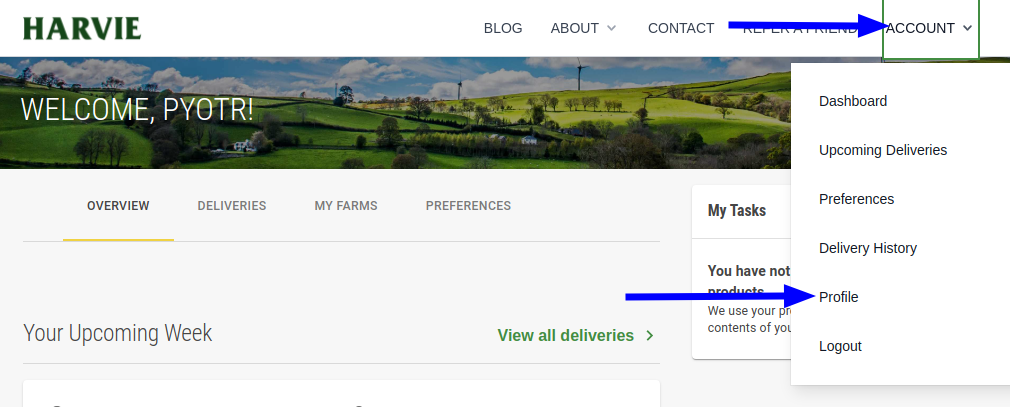
- Click the "Account" link in the top navigation menu, and choose "Profile"
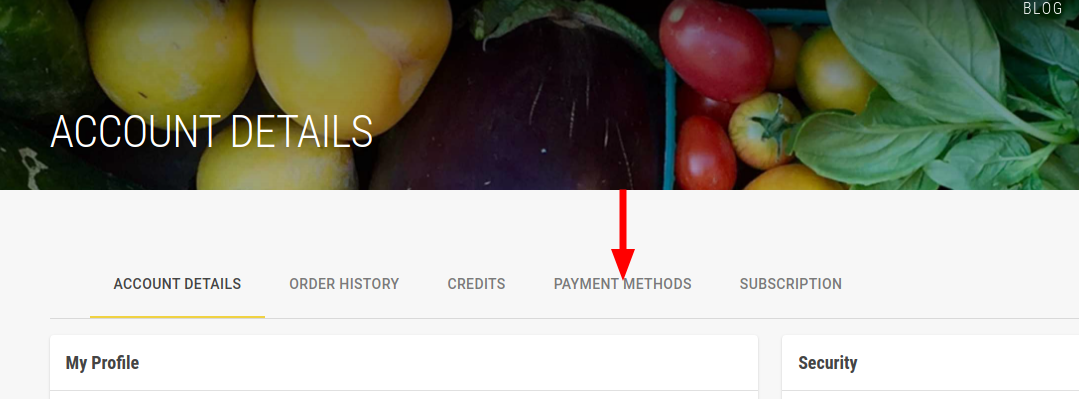
- Then, go to the "Payment Methods" tab
Managing your cards on file:
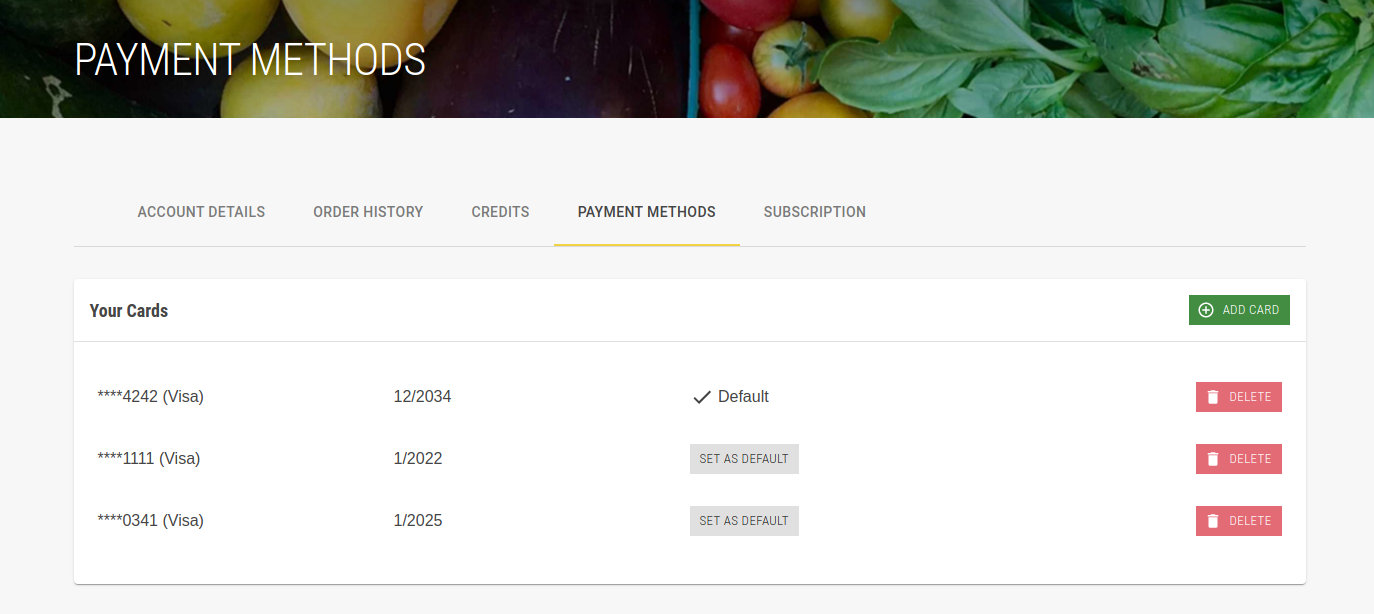
When you arrive on the Payment Methods page, you will see a list of the cards you have added to your account. From here, you can add a new card to your account, remove one from your account, or change which one is the default to be used for future transactions.
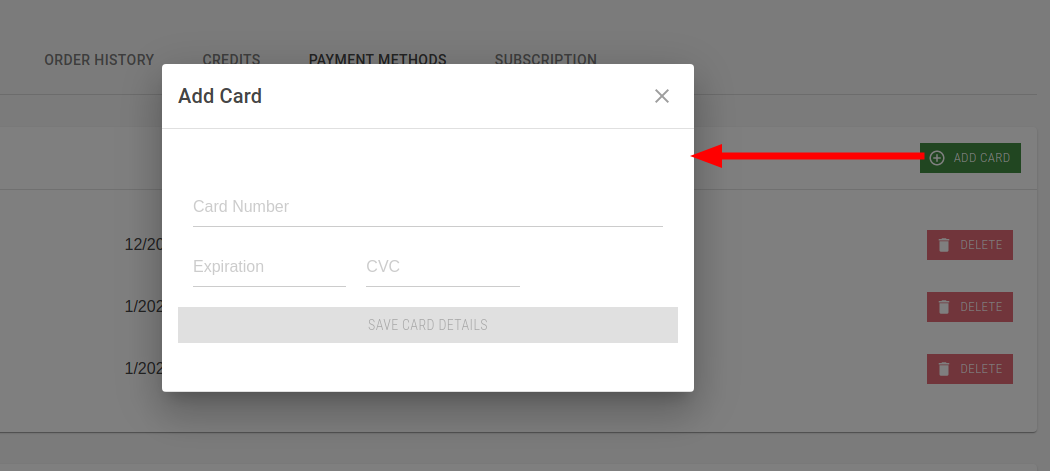
To add a card, click the "Add Card" button. A popup will appear, where you may fill in the necessary information. All fields are required. When you have entered valid values in all fields, the "Save Card Details" button will become enabled. Click it to add the card to your account. This card will become the default payment method for future transactions, and any overdue or failed payments on your account will automatically be processed against it.